Changelog

Follow new updates and improvements to Skribble.

Send Skribble emails from your own address
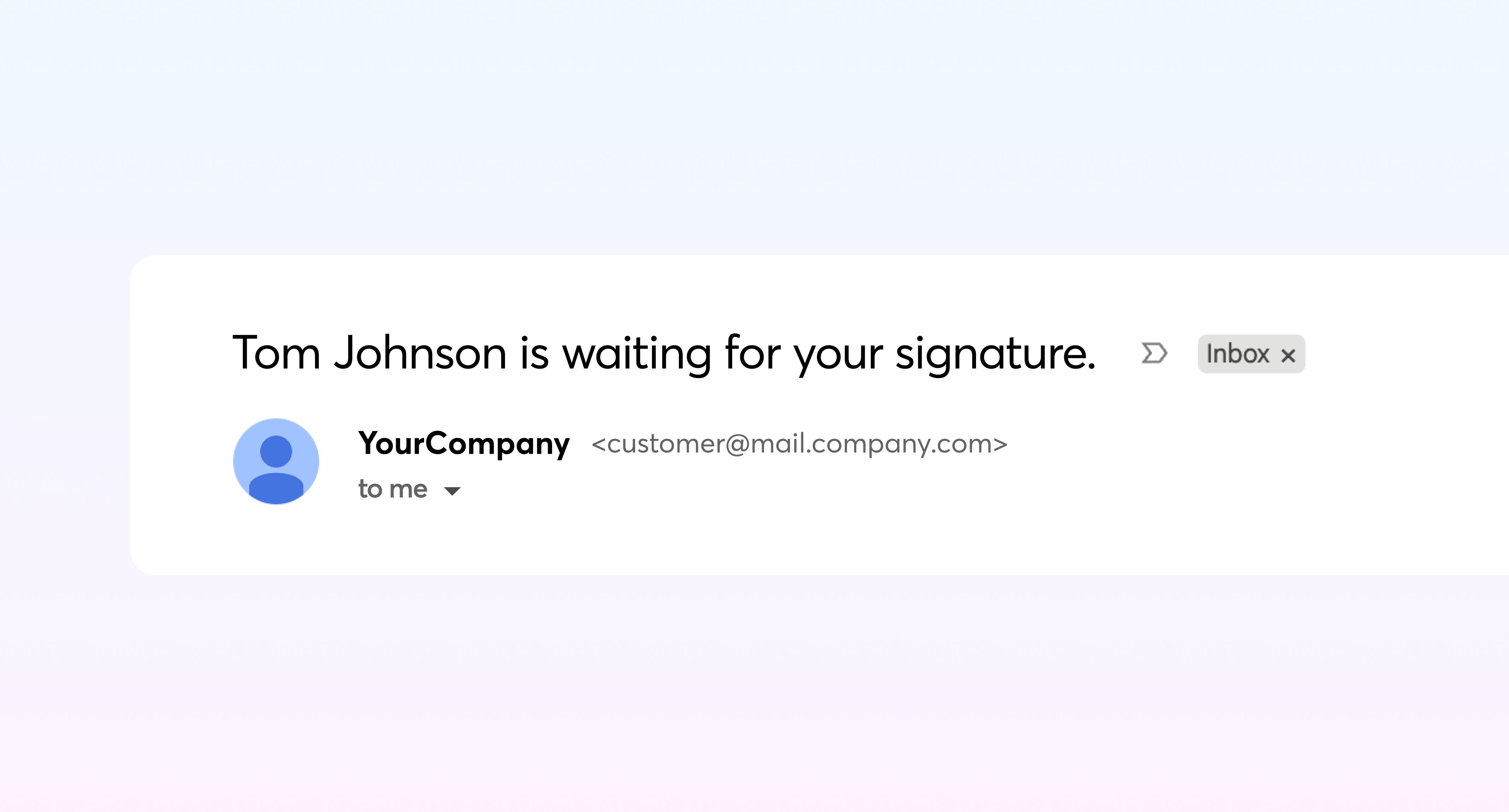
Make the signature requests be sent from your email address, instead of no-reply@mail.skribble.com.

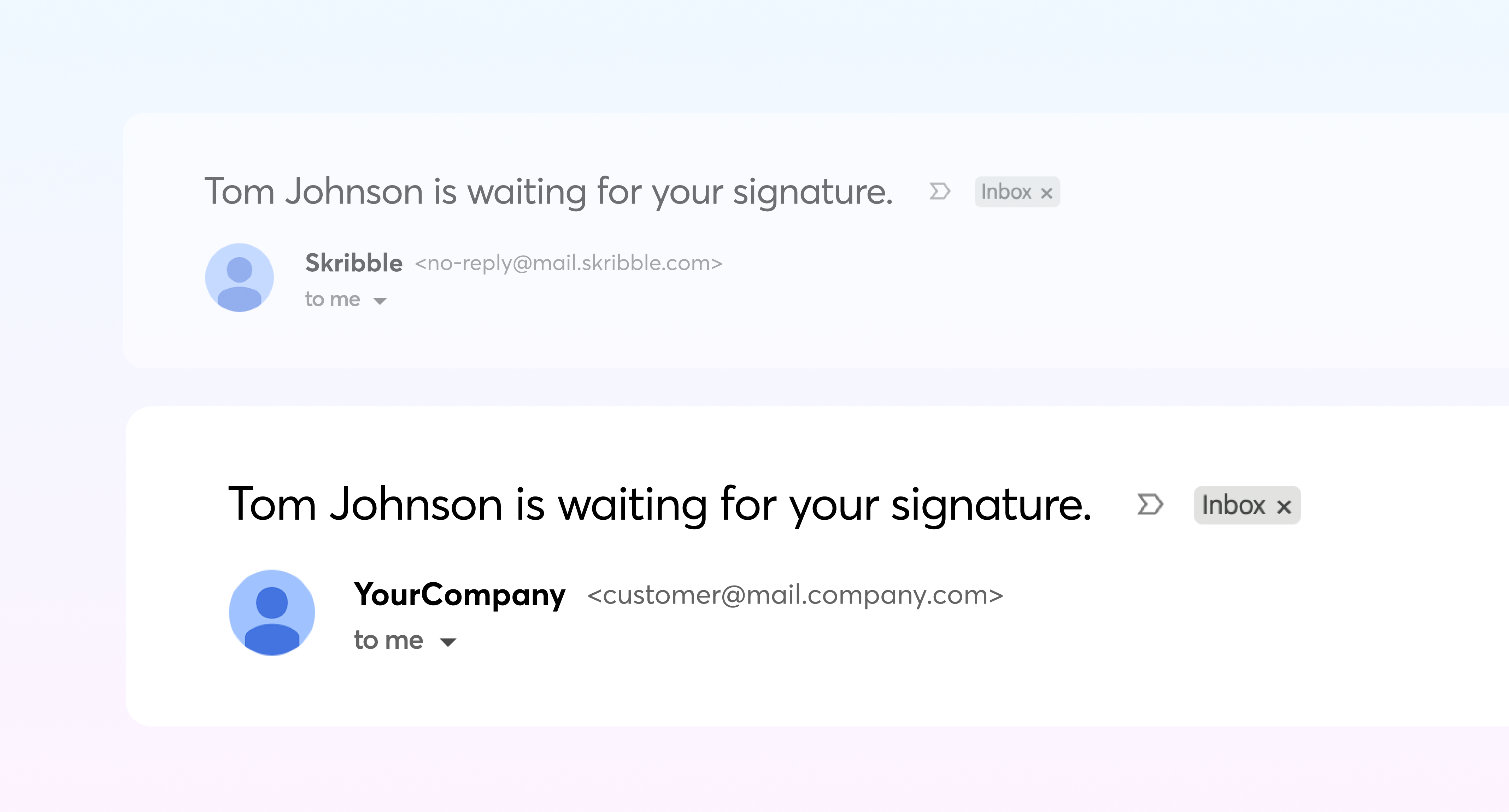
Your signers will see a sender address they recognise, translating into fewer ignored emails as unfamiliar and into a signing flow that stays consistently yours, from invitation to completed document.


How does it work?

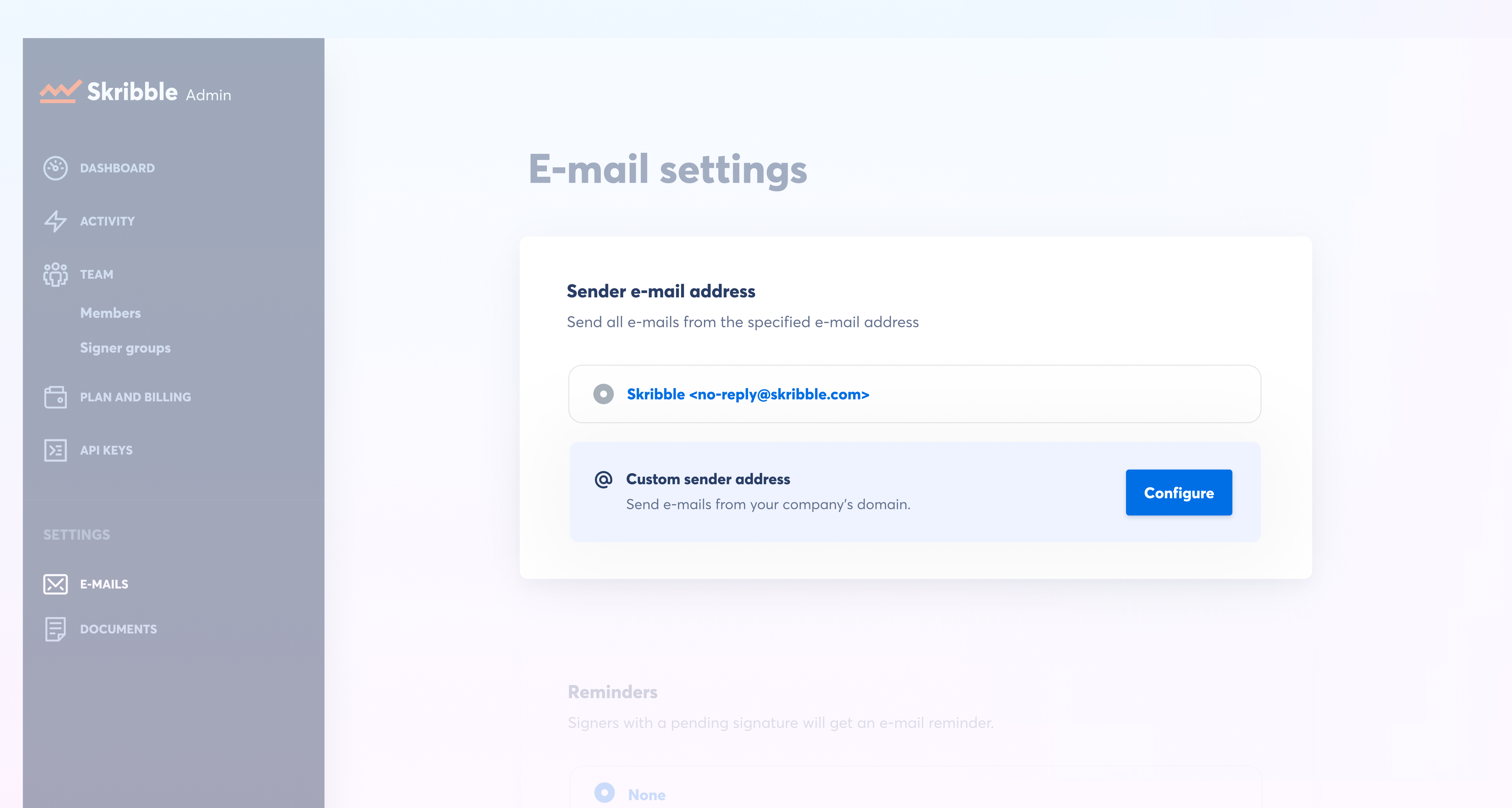
When enabled, in the admin area, you can configure your custom email address by accessing the email settings.
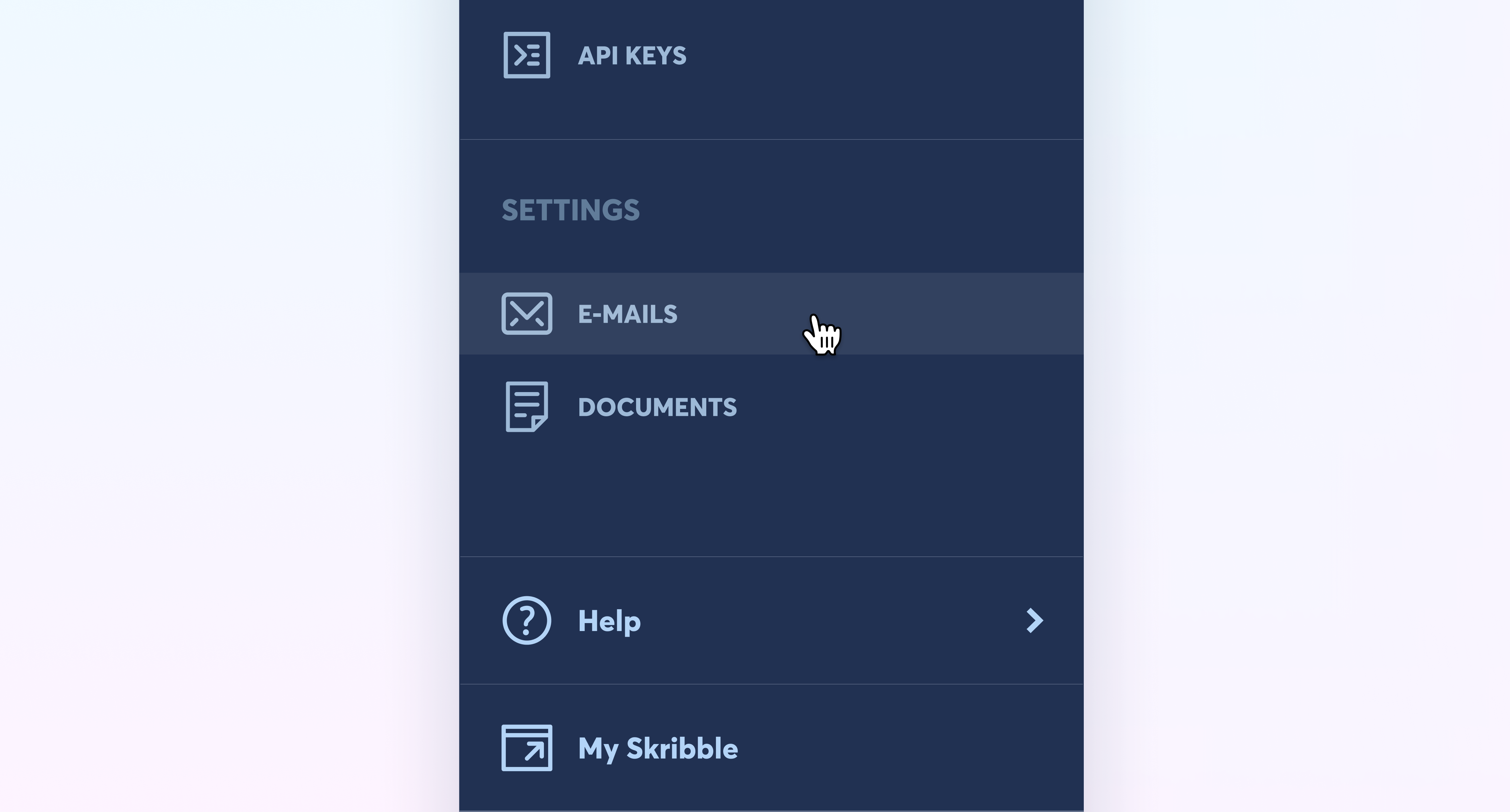
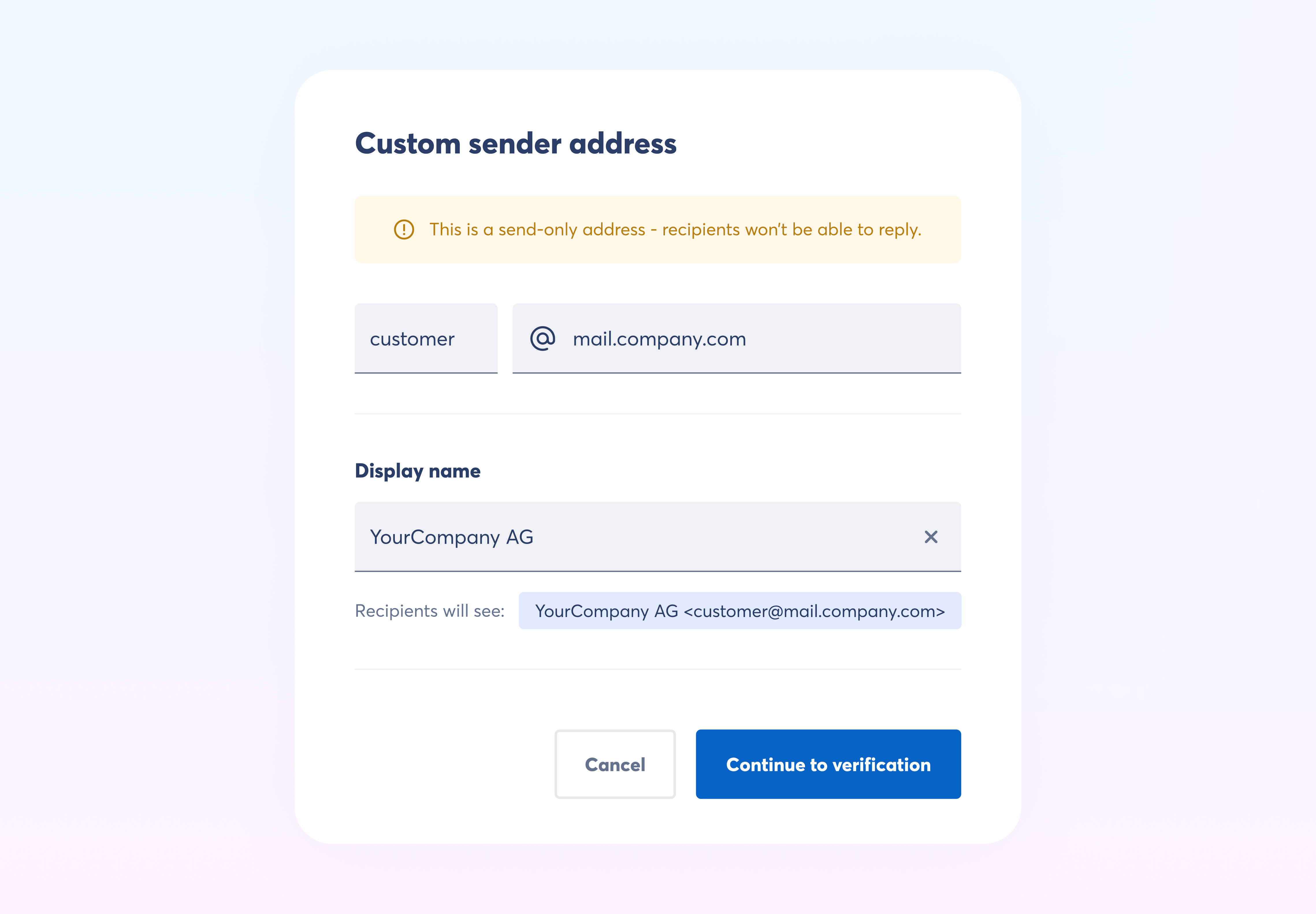
Configure the sender address and display name your signers will see. A preview shows how it appears in their inbox.

Note that this is a send-only address and signers won’t be able to reply to it.
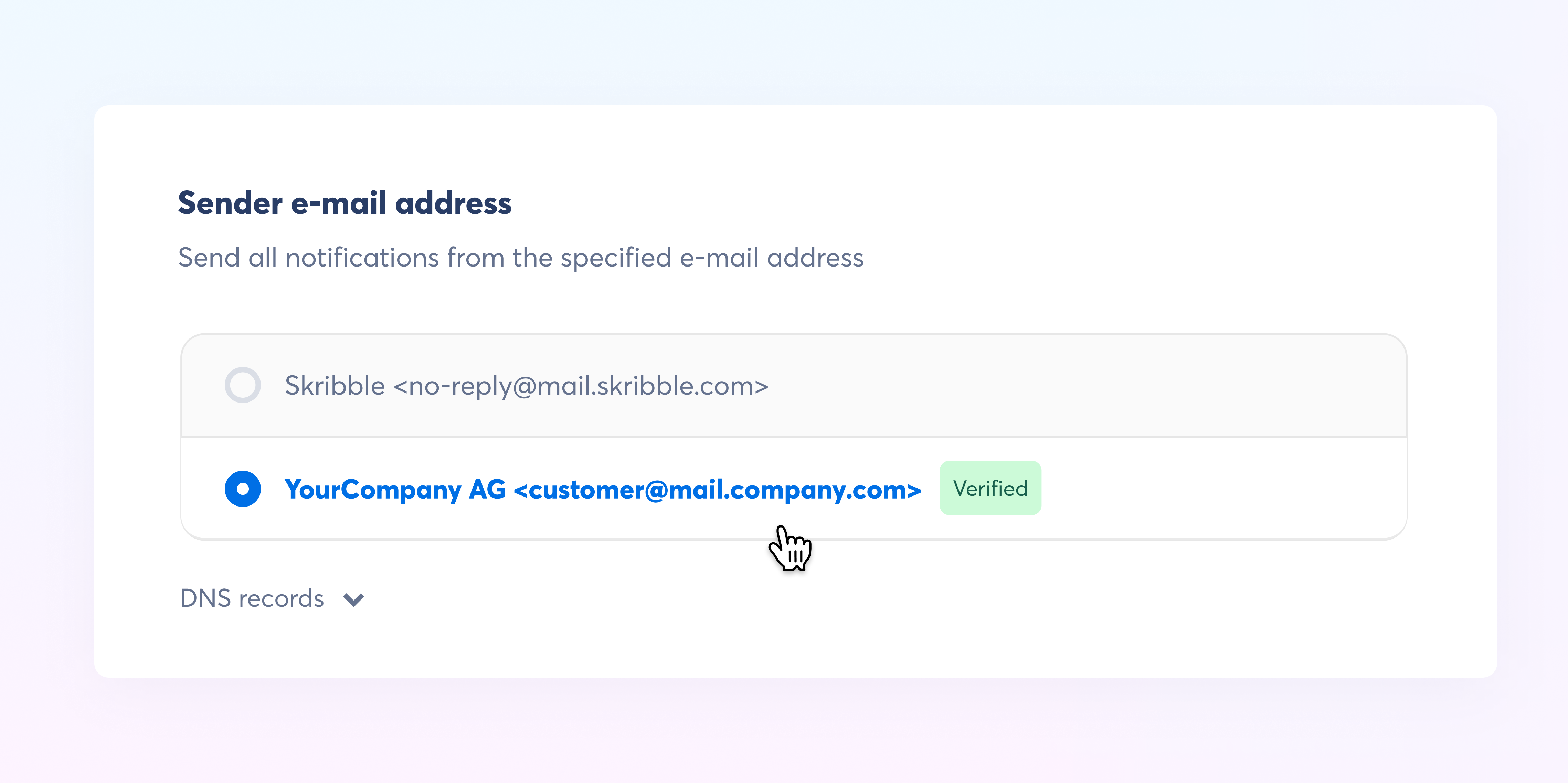
All new custom sub-domains require configuring and verifying the DNS records. You can find more details about the process in our Skribble Docs.


After the custom sub-domain is verified you can select your address from the list and all the emails will be sent from the custom address.
Talk to your Customer Success Manager or Support to get your custom sender address.
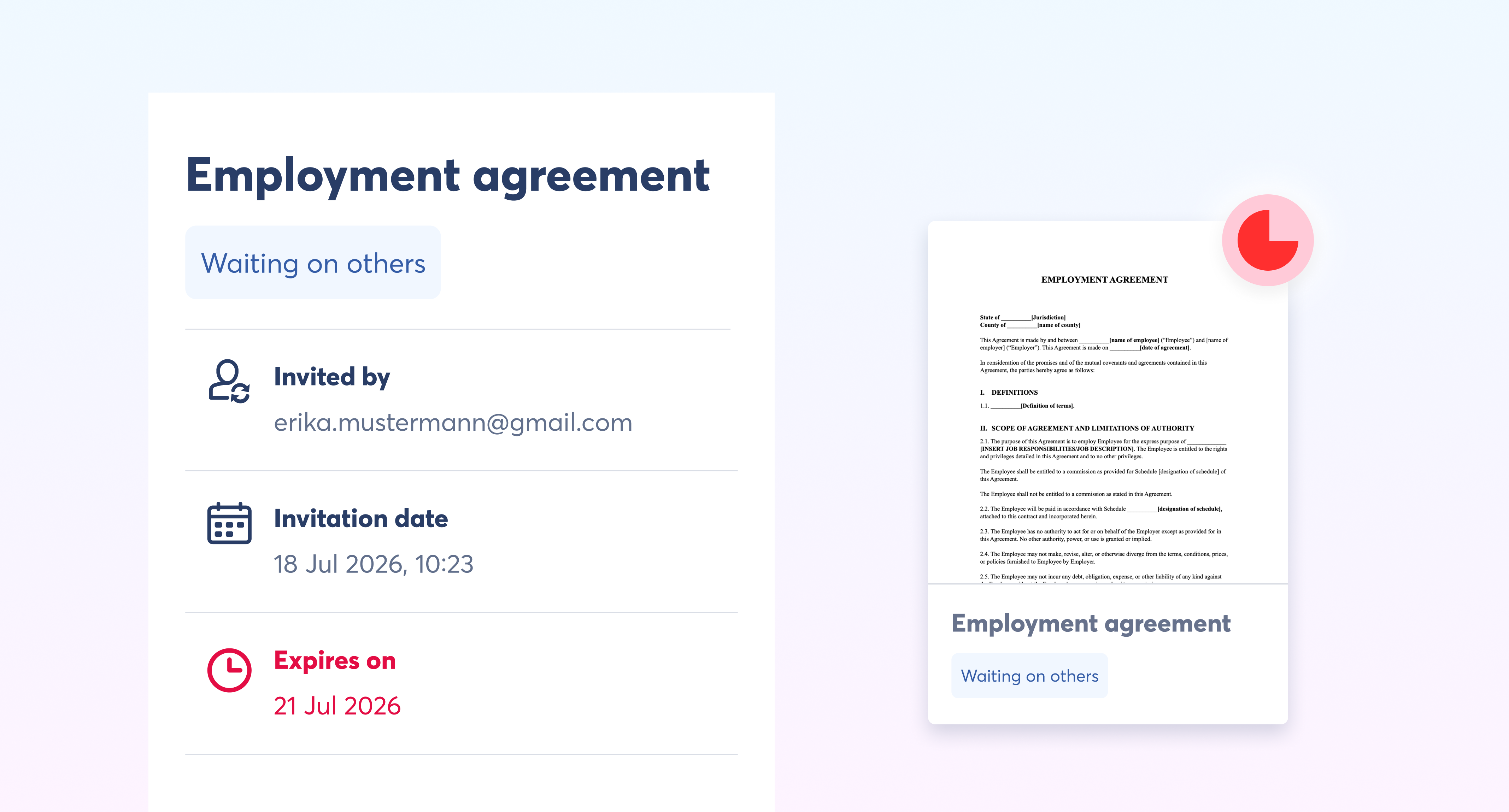
Set an expiration date on signature requests

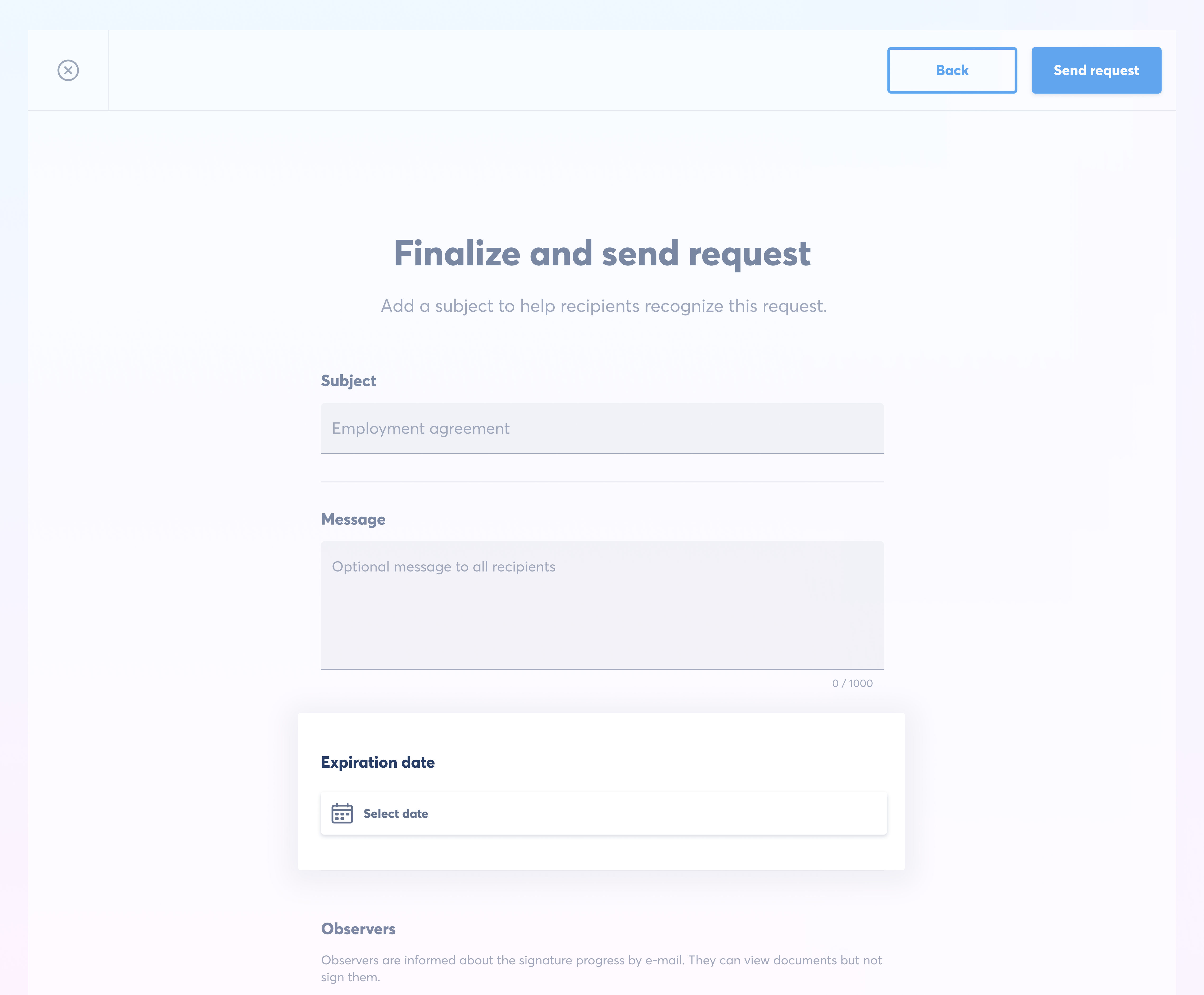
You can now give a signature request a deadline. When you send a document for signing, set an expiration date and the request closes automatically once that date passes.

No more chasing signatures on a document that's no longer relevant, and no more manually withdrawing stale requests. You can now set it and forget it.


How does it work?

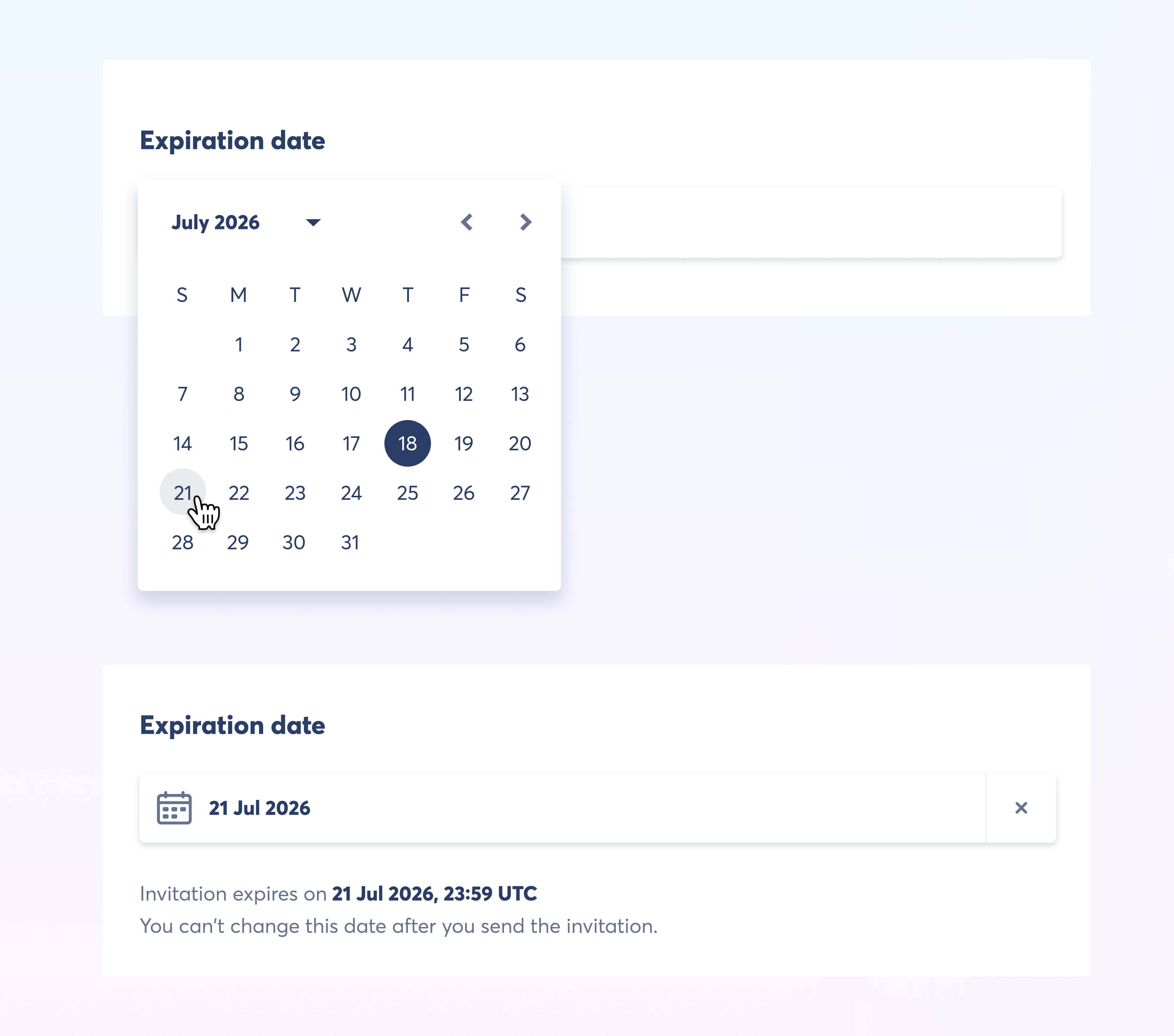
Set the expiration date in the final step of sending a signature request.

The request expires at 23:59 UTC on the date you choose. Once the invitation is sent, the date is fixed and can't be changed.


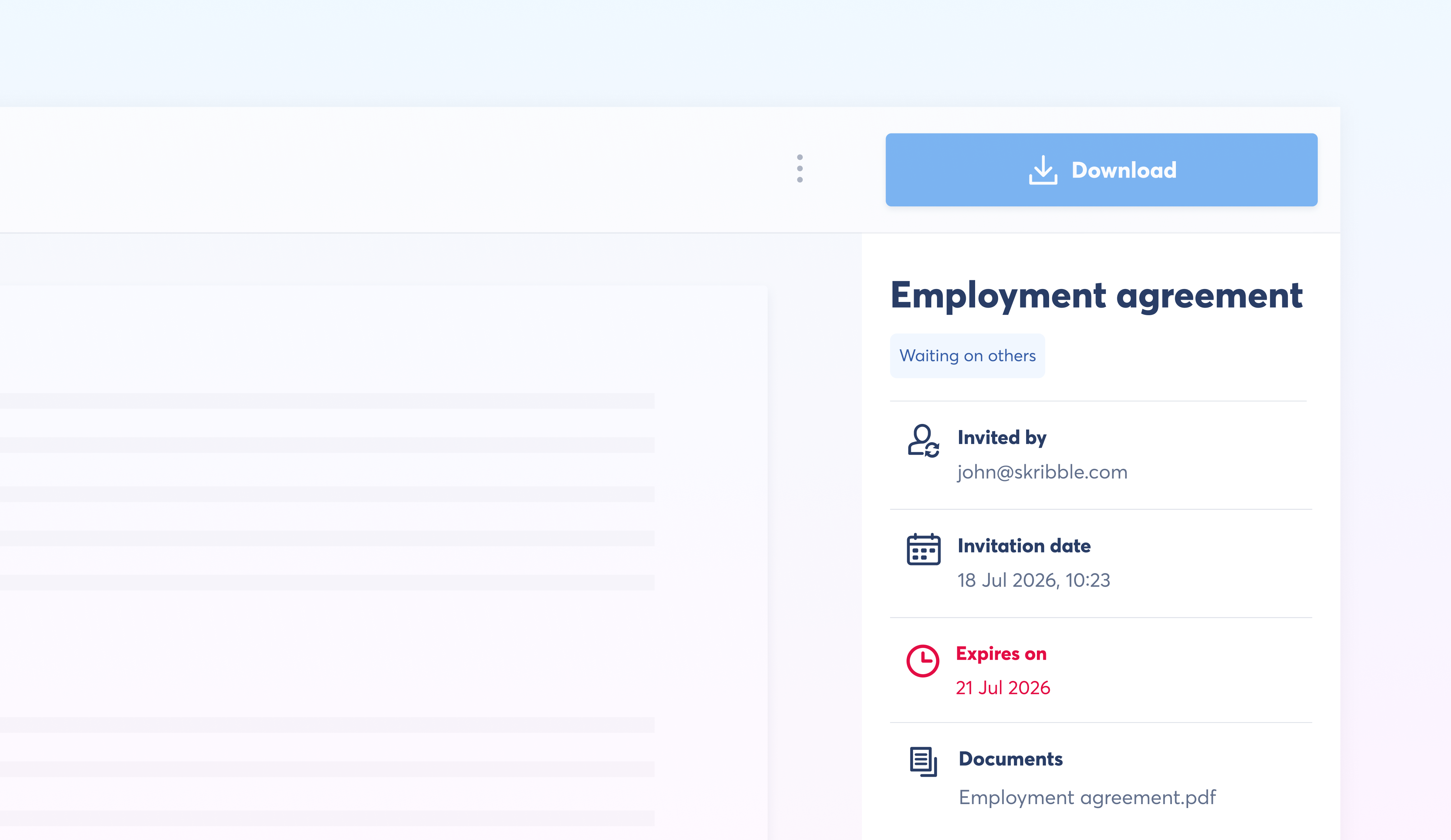
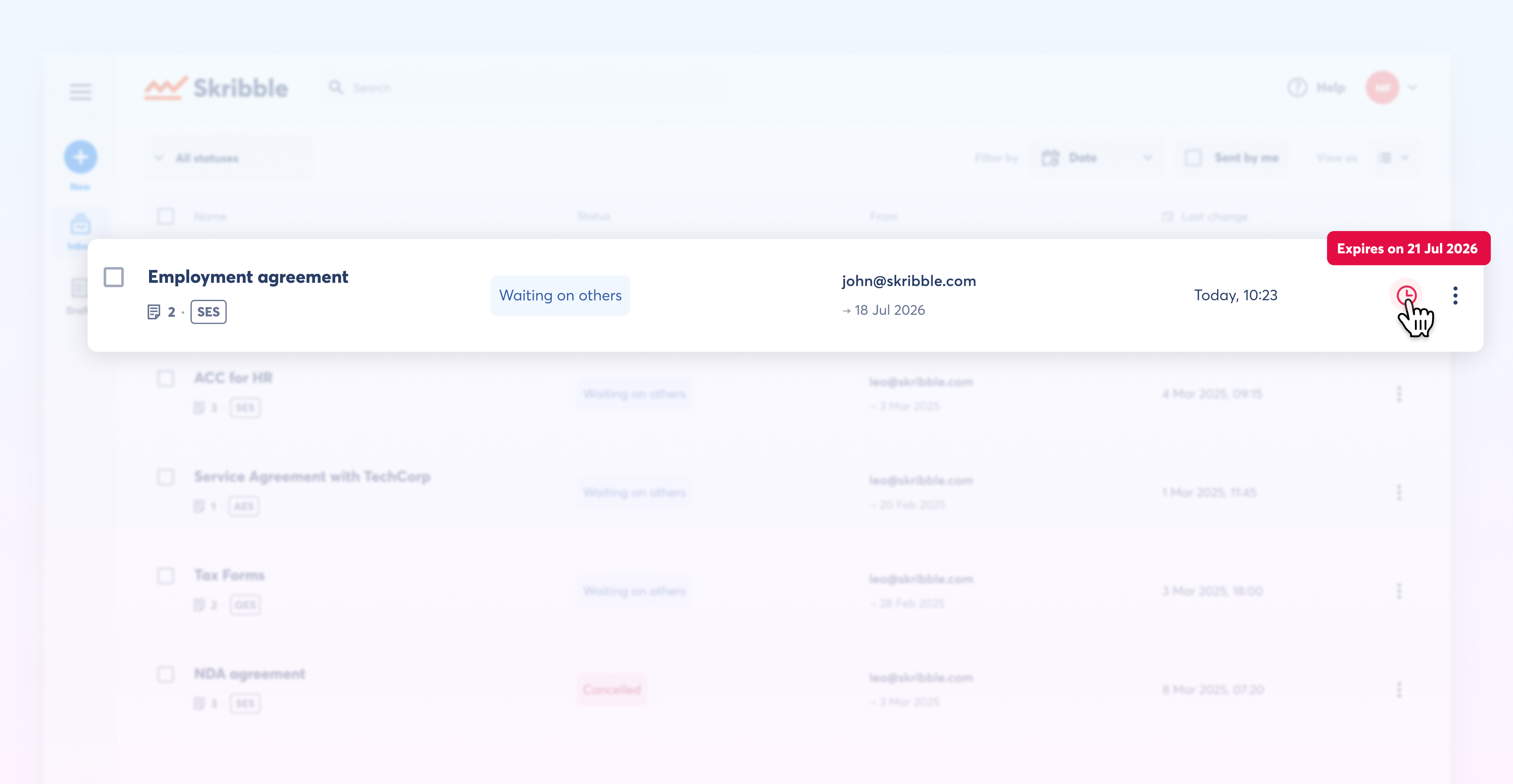
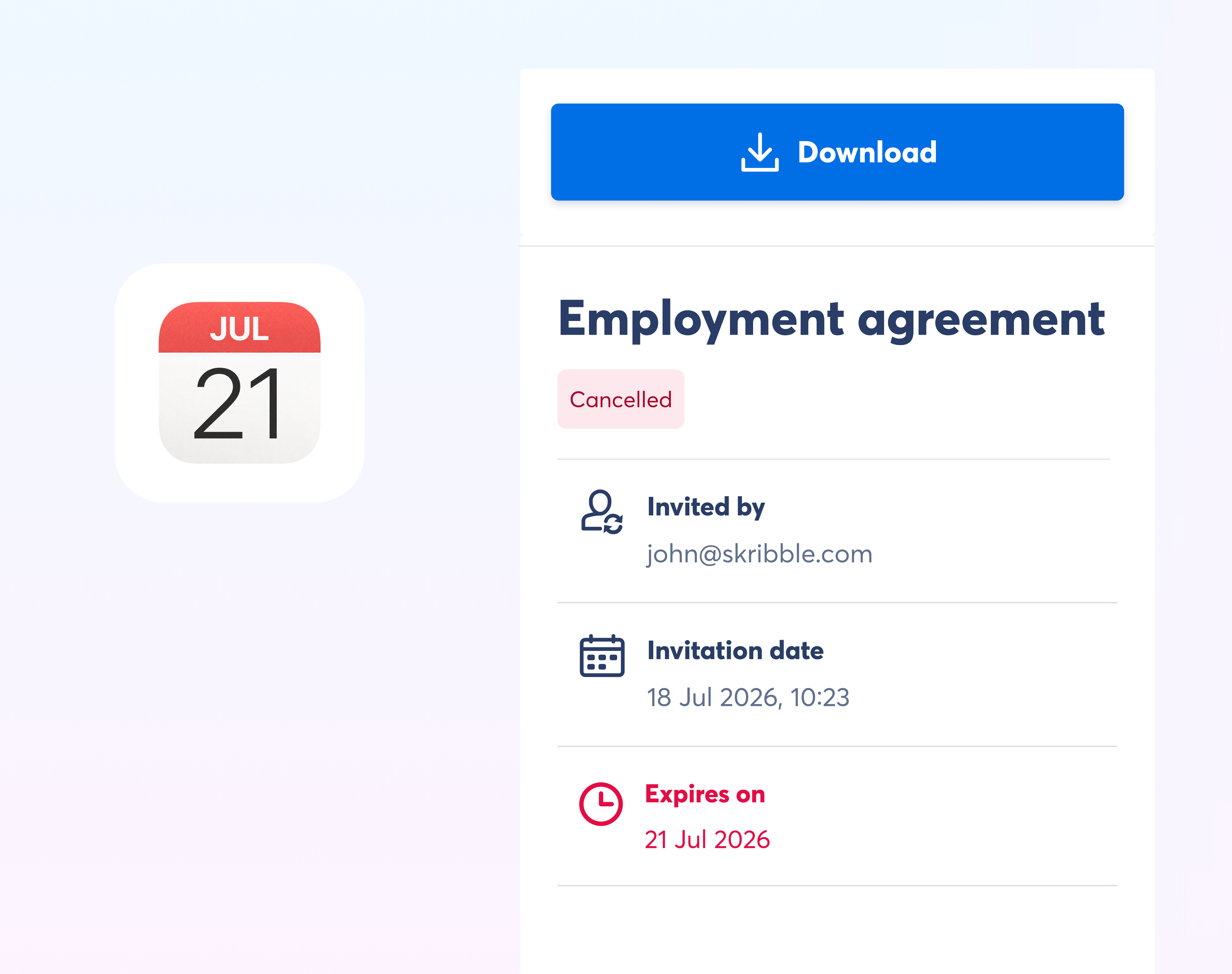
Once sent, the expiration date appears in the sidebar of the signature request viewer, where all signers and observers can see it. Also in your inbox.

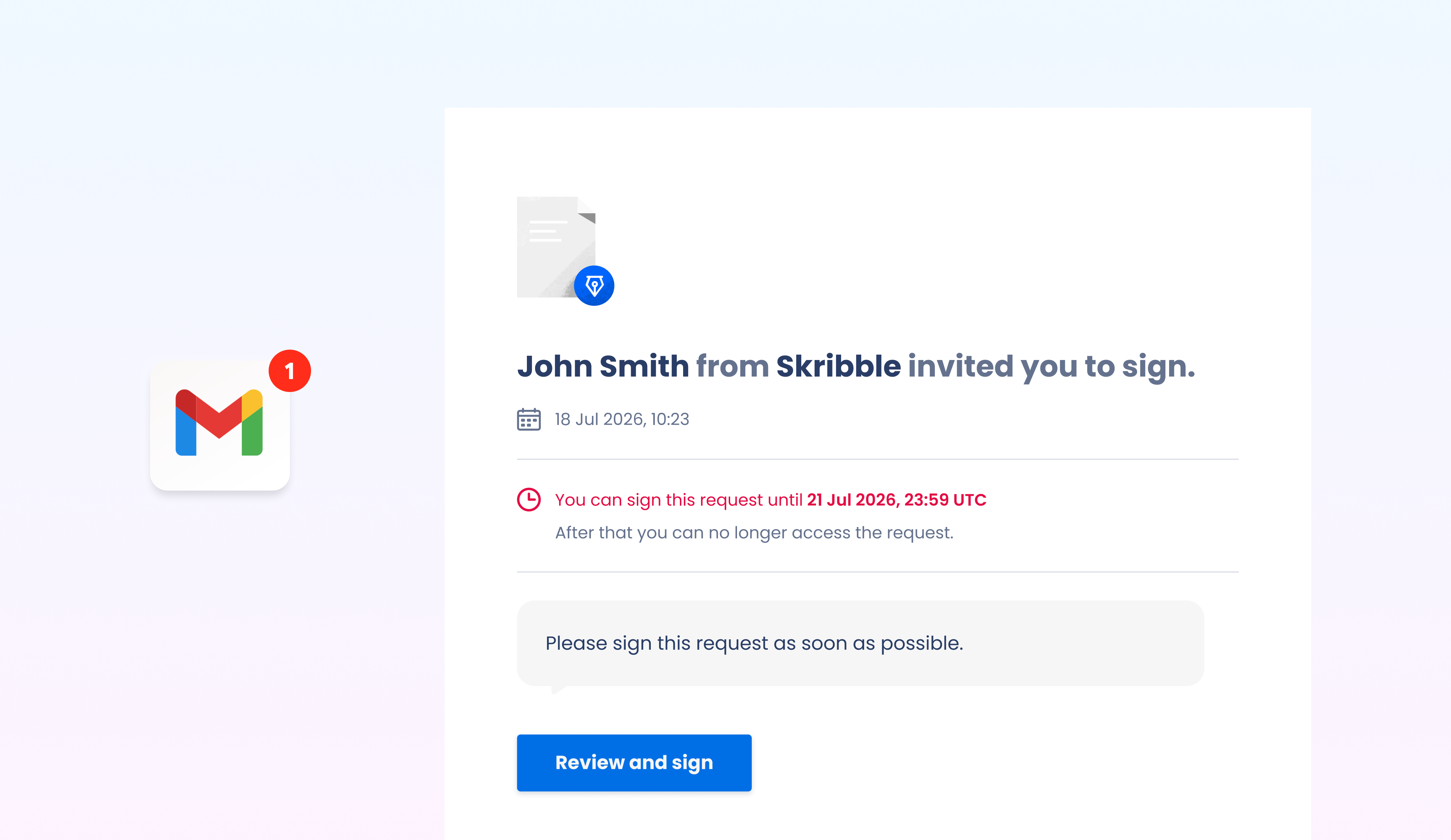
And in every email signers receive.


What happens when a request expires

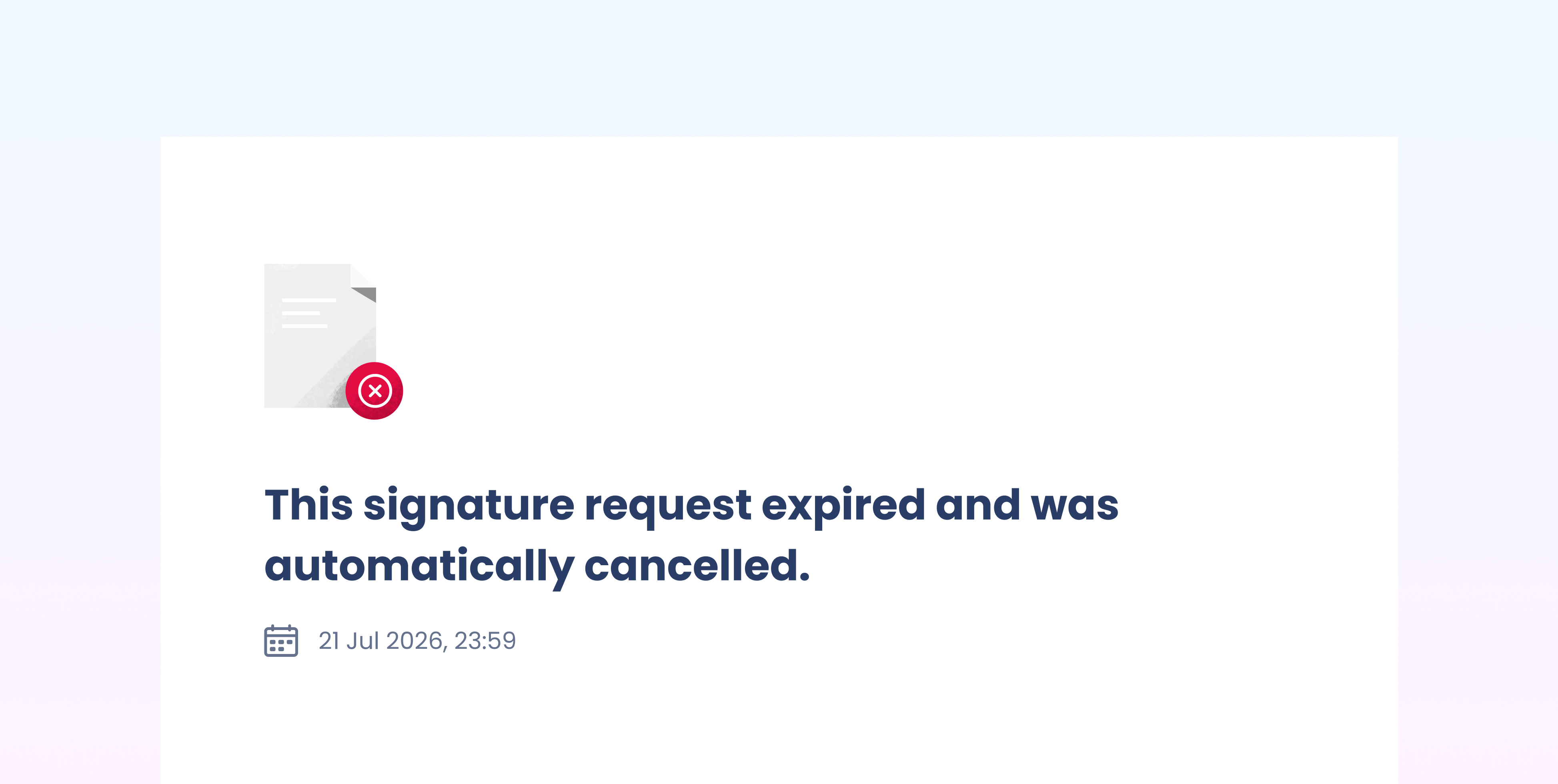
The request is cancelled automatically and can no longer be signed. Signatures collected before the deadline remain valid, meaning you can still download the partially signed document from your account.


You and all signers receive an email confirming the request has expired, and signers no longer have access to the signature request. If the document still needs signing, you can send a new request.

Microsoft Office Add-Ins

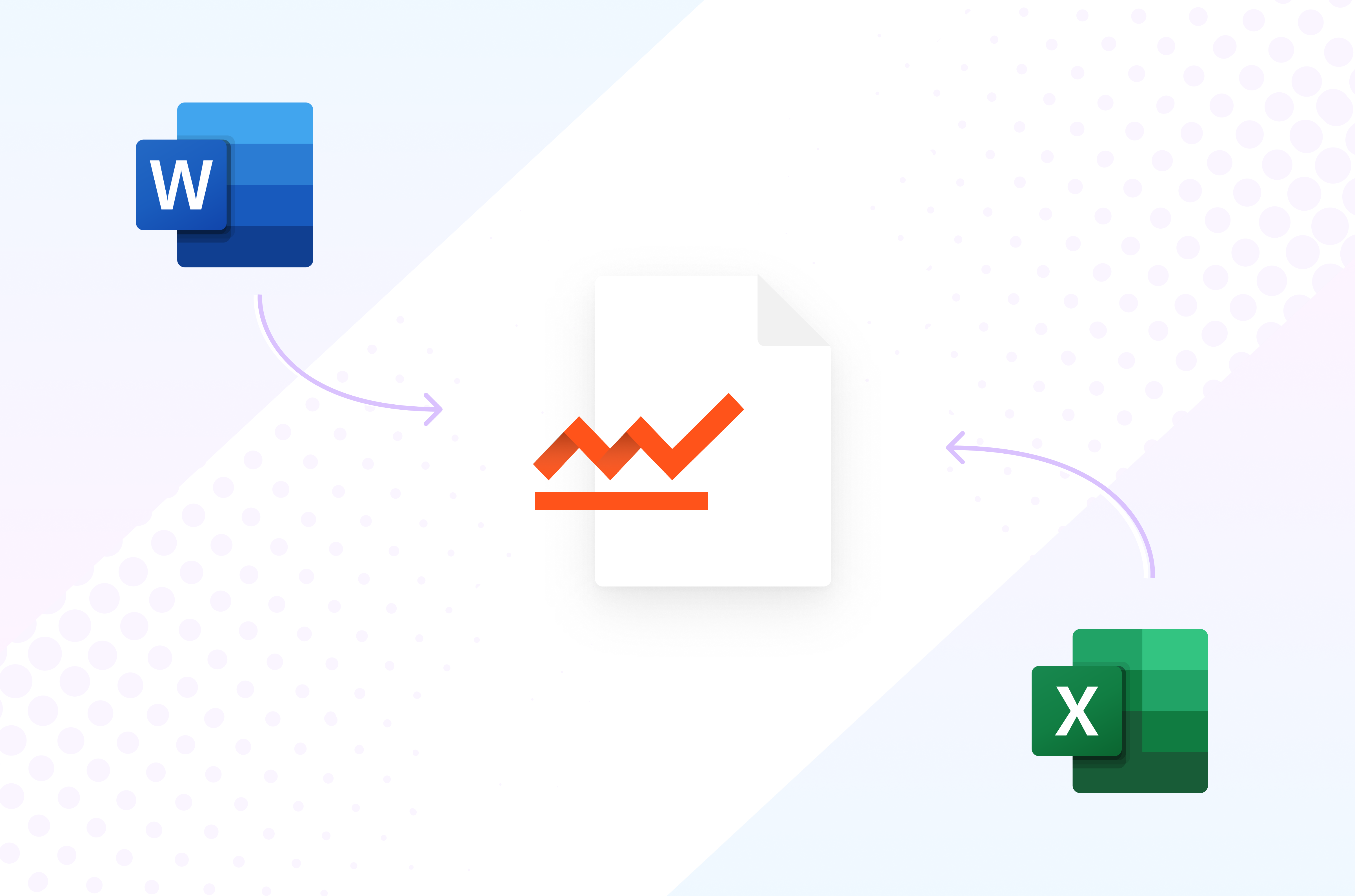
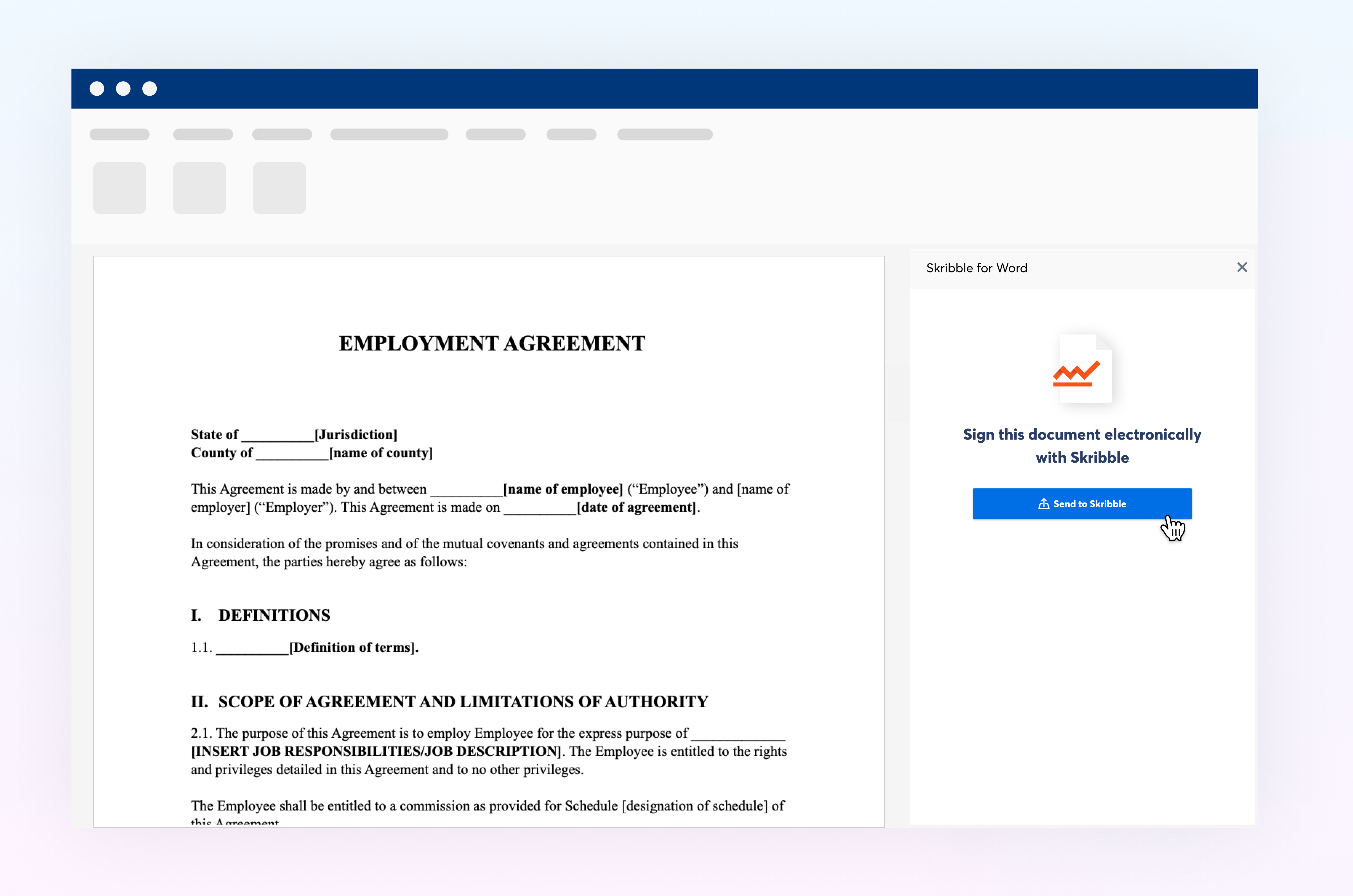
Boost your e-signing efficiency by sending documents to Skribble directly from Word or Excel.

You can download Skribble E-Signature for Word or Excel directly from the Microsoft AppSource.


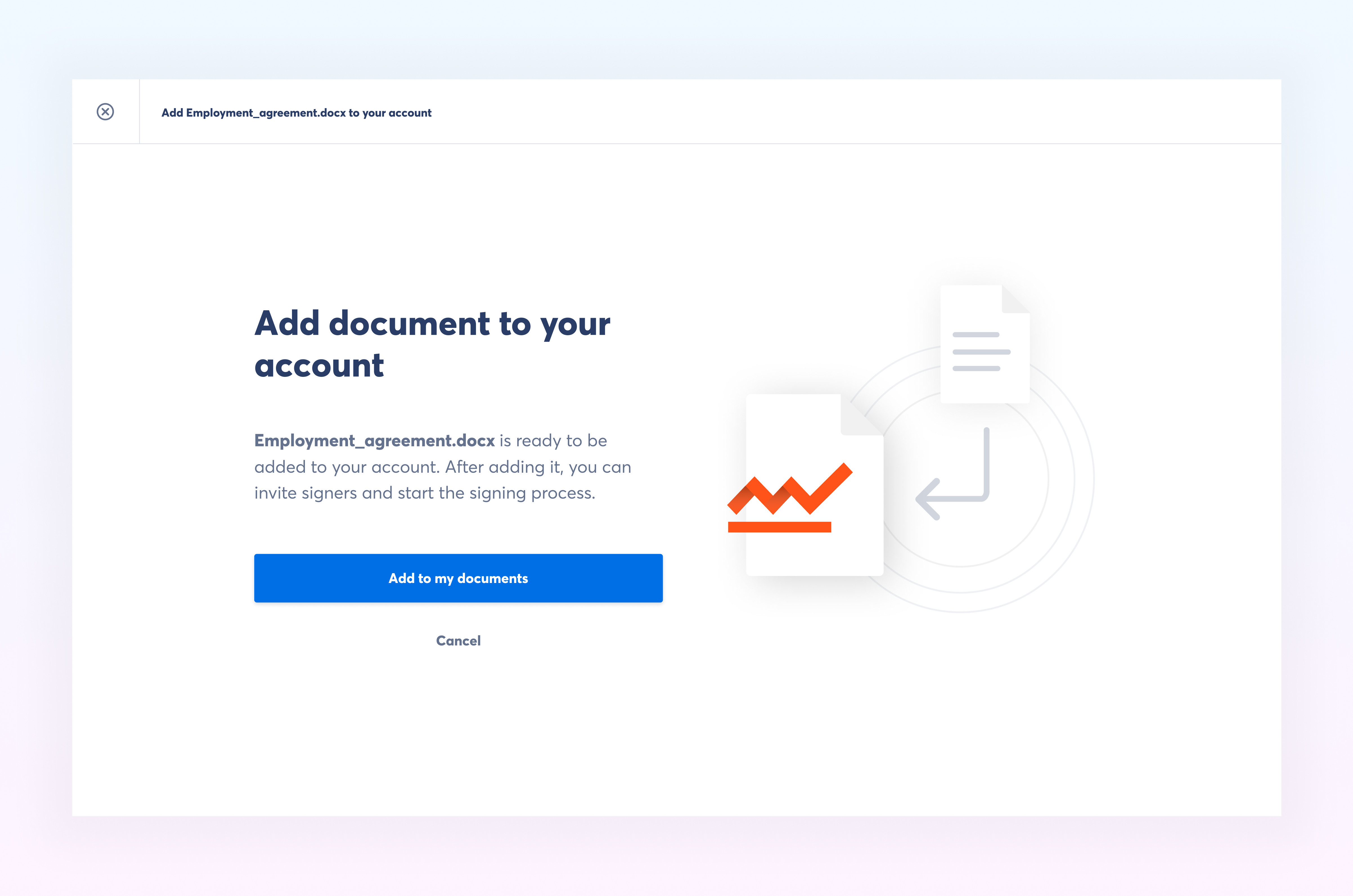
Once you have the Add-In installed, you can send to Skribble any document for signing.

Confirm the document in Skribble and you are ready to get it signed!

Earlier updates